WooCommerce WhatsApp Integration: A Practical Guide for WordPress Stores
Most WooCommerce stores still tell customers what is happening by email. The order confirmation goes to a promotions tab, the shipping notice goes unread, and three days later the customer opens WhatsApp and asks the question the email already answered. Your inbox fills with "where is my order" and nobody on the team is quite sure which emails actually arrived.
WhatsApp changes that maths, because people genuinely read it. This guide walks through connecting WooCommerce to the official WhatsApp Business API with the free Texnity plugin, mapping order statuses to approved templates, recovering abandoned carts, and keeping every reply in one shared inbox instead of on somebody's phone.
Why WooCommerce Stores Move Order Updates to WhatsApp
Email is not broken, it is just crowded. A transactional email competes with newsletters, receipts and everything else that landed that morning. A WhatsApp message sits in a list of conversations with family and friends, so it gets opened, usually within minutes.
For a WooCommerce store, that difference shows up in three places. Support volume drops because the status update arrives before the customer thinks to ask. Failed and refused deliveries drop because customers actually see the dispatch notice and can flag a wrong address. And repeat purchases get easier, because you now have a channel the customer already replies on.
The important word in all of this is official. Sending order updates through an unofficial tool that automates WhatsApp Web puts your business number at real risk of being blocked, and it takes your customer list with it. The Texnity plugin sends through the official WhatsApp Business Platform, which is the version Meta actually supports.
What You Need Before You Start
The setup is short, but it does have prerequisites. Getting these in place first saves a lot of back and forth.
- A WordPress site running WooCommerce, on WordPress 5.8 or later and PHP 7.4 or later.
- A Texnity account with an active instance, which is where your templates, inbox and reporting live.
- A WhatsApp Business number that is approved on the official WhatsApp Business Platform. A number that is currently active on the consumer WhatsApp app has to be migrated first.
- Your Texnity secret key, which is what connects the plugin on your site to your Texnity instance.
Step 1: Install the Texnity Plugin for WooCommerce
The plugin is published on WordPress.org as Texnity for WooCommerce and it is free. Install it the way you would install any other plugin, either by searching for it from Plugins then Add New inside wp-admin, or by downloading it from WordPress.org and uploading the zip.
Activate it, and a Texnity settings screen appears in your WordPress admin. Nothing sends yet. The plugin is simply sitting there waiting to be pointed at your Texnity instance.
Step 2: Connect Your Store With the Secret Key
Open the plugin settings and paste in the secret key from your Texnity account. That single key is what authorises your store to send messages through your approved WhatsApp number, and it is also what lets replies travel back into your Texnity inbox through a secured webhook.
Once the key is saved, the connection is live. From here on, everything is configuration rather than code. There are no theme edits and nothing to paste into functions.php, which matters if your site is managed by someone else or running a page builder you would rather not touch.
Step 3: Map Order Statuses to WhatsApp Templates
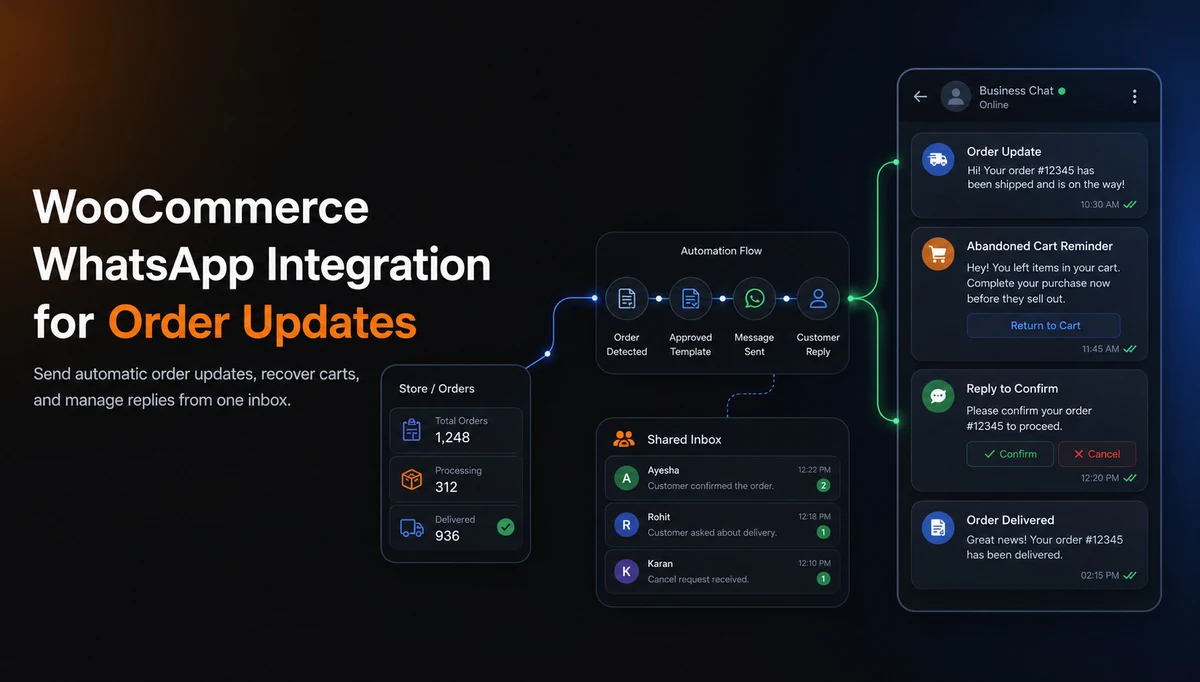
This is the part that does the real work. WooCommerce already moves an order through a series of statuses, and the plugin lets you attach an approved WhatsApp template to each one, so the message sends itself the moment the status changes.
You can map templates to order placed, processing, on hold, shipped, cancelled, refunded and failed. Most stores start with three, being order placed, shipped and delivered, then add the others once they see what customers actually ask about.
Template variables are filled in automatically from the order, so you are not writing anything by hand. The customer name, order number, order total, item list and tracking details all populate from WooCommerce itself. Write the template once, and it stays correct for every order after that.
- Order placed: confirm the order and set expectations for dispatch time.
- Processing: reassure the customer that the order is being prepared.
- On hold: explain what is blocking the order and what you need from the customer.
- Shipped: send the tracking details, which is the single highest value message in the whole sequence.
- Cancelled, refunded or failed: close the loop clearly so the customer does not have to chase you.
Step 4: Turn On Abandoned Cart Recovery
An abandoned cart is not a lost customer, it is a customer who got interrupted. WhatsApp is unusually good at recovering them because the reminder arrives somewhere they already look.
The plugin can send up to two abandoned cart reminders, with delays you configure. A short first reminder within the hour catches the genuinely distracted shopper. A second one the next day catches the person who wanted to think about it. Each reminder carries a one click cart restore link, so the customer returns to a filled basket rather than an empty one they have to rebuild.
Two reminders is usually the ceiling worth using. A third rarely converts and it does push people towards blocking your number, which is a much more expensive outcome than one lost cart.
Step 5: Let Customers Confirm or Cancel by Replying
Order confirmation is where WhatsApp stops being a notification channel and starts being useful. The plugin supports keyword replies, so a customer answering yes can automatically advance the order to a status you choose, and a reply of cancel can move it to cancelled.
For stores running cash on delivery this is the difference between dispatching confidently and dispatching hopefully. You are no longer guessing which orders are real, because the customer has told you in writing before the parcel leaves your warehouse.
You can also send a new order alert to an admin number, so whoever runs fulfilment sees the order on WhatsApp the moment it lands rather than when someone next opens wp-admin.
Where the Replies Actually Go
The moment you start messaging customers, they start messaging back. That is the point where a lot of stores come unstuck, because the replies arrive on a phone that one person owns.
With the integration in place, replies land in two places at once. They appear in the Texnity shared inbox, where any agent can pick them up with the customer's full order history attached, and they are logged in your WordPress admin as a message log so you have a record inside the store itself.
That shared inbox is the difference between a broadcast tool and an actual support channel. Conversations get assigned, labelled and reported on, so you can answer the question a founder eventually asks, which is how many enquiries came in last month and how fast were they answered.
Common Mistakes to Avoid
Most problems with WooCommerce and WhatsApp are not technical. They come from treating a conversation channel like a mailing list.
- Sending marketing content through utility templates. Meta categorises templates for a reason, and misusing a utility template to push a promotion risks the template being rejected or your quality rating dropping.
- Mapping every single order status on day one. Start with the statuses customers actually care about, then expand.
- Writing templates that sound like a system. The message arrives beside conversations with real people, so it should read like your store, not like a database dump.
- Leaving replies unattended. If you message a customer on WhatsApp, they will reply, and an unanswered reply is worse than never messaging at all.
- Using an unofficial automation tool to save a few dollars. A blocked number costs far more than the platform fee it saved.
Is It Worth It for a Smaller Store?
The plugin itself is free, so the real question is whether the messaging volume justifies the setup time. For most stores it does, because the work is front loaded. You configure the templates once and the sequence runs on its own for every order after that.
The clearest signal that it is worth doing is your own support inbox. If a meaningful share of the messages you answer every week are people asking where their order is, that entire category of question can be handled before it is ever asked.
You can see how the integration fits together on our WooCommerce integration page, and if you also sell on Shopify, the same order events and abandoned cart recovery are available there through the Texnity Shopify app.
Ready to run WhatsApp the official way?
Official API access, a shared inbox, automation and reports in one place.